

Add colleagues and choose their roles
Make a join link for one address, send it yourself, and change or remove a colleague's role from Team.
Updated
Team workspaces are opened on request. Ask for one; this is how it works once yours is open.
Invite a colleague
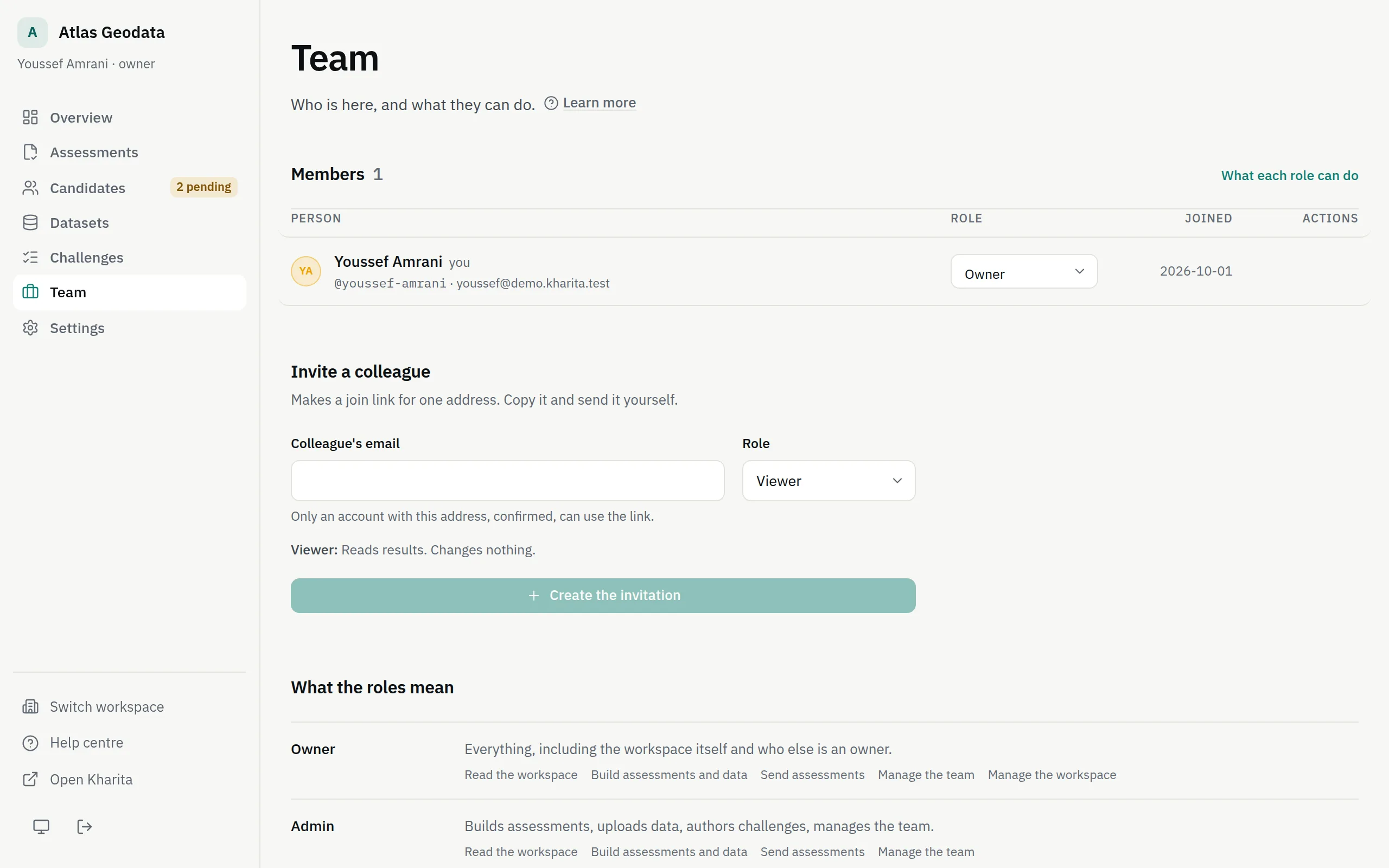
Step 1: Open Team in the rail. Owners and admins see Invite a colleague.
Step 2: Enter Colleague's email and choose a Role. What the role can do is shown under the fields.
Step 3: Press Create the invitation and copy Their join link.
Step 4: Send the link yourself. Nothing is emailed from Kharita.
Invitations not yet used
Unused links are listed under Invitations outstanding, each with the day it expires. Withdraw stops a link at once. Only an owner can withdraw an invitation to become an owner.
Change a role
Choose a new role from the Role menu in the members table; it applies at once. An owner can grant any role, including Owner. An admin can grant Admin, Interviewer or Viewer, and cannot change an owner's role.
The last owner cannot step down: promote somebody else to Owner first. That is also how a workspace passes to someone else.
Remove someone
Owners and admins can Remove a member. An admin cannot remove an owner, and nobody can remove themselves — to leave a workspace, ask an owner or an admin. Removing a member also withdraws any join links they made that nobody has used.
Related
Still stuck? Write to Support