

Get started with a team workspace
What a workspace is for, how it is laid out, and the three steps from an empty one to a first result.
Updated
Team workspaces are opened on request. Ask for one; this is how it works once yours is open.
What a workspace is
A workspace is your team's private corner of Kharita: assessments you build from the public catalogue and from problems written on your own data, the candidates you send them to, and their scorecards. Nothing in it is public — your datasets, your problems and every candidate's answers stay inside it.
Find your way around
The rail on the left holds the workspace's sections. It shows only the ones your role can use:
| Section | What it holds | Who sees it |
|---|---|---|
| Overview | Your results and what is waiting on you; your first steps while you set up | Everyone |
| Assessments | The tests you build and send | Everyone |
| Candidates | Everyone you have invited, and their scorecards | Everyone |
| Datasets | Your own layers | Owners and admins |
| Challenges | Problems on your own data | Owners and admins |
| Team | Members, roles and join links | Everyone |
| Settings | The workspace's details, and deleting it | Owners |
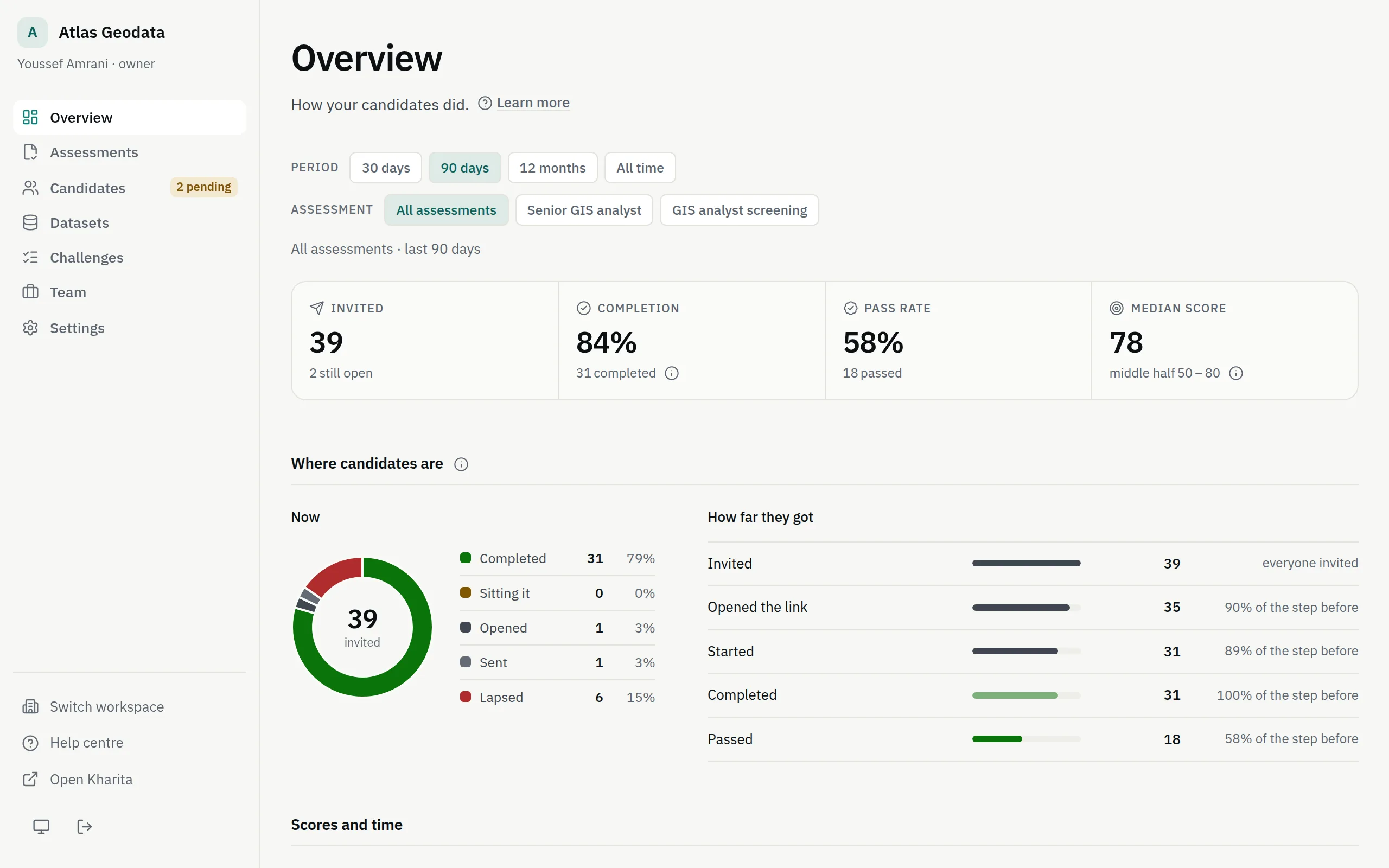
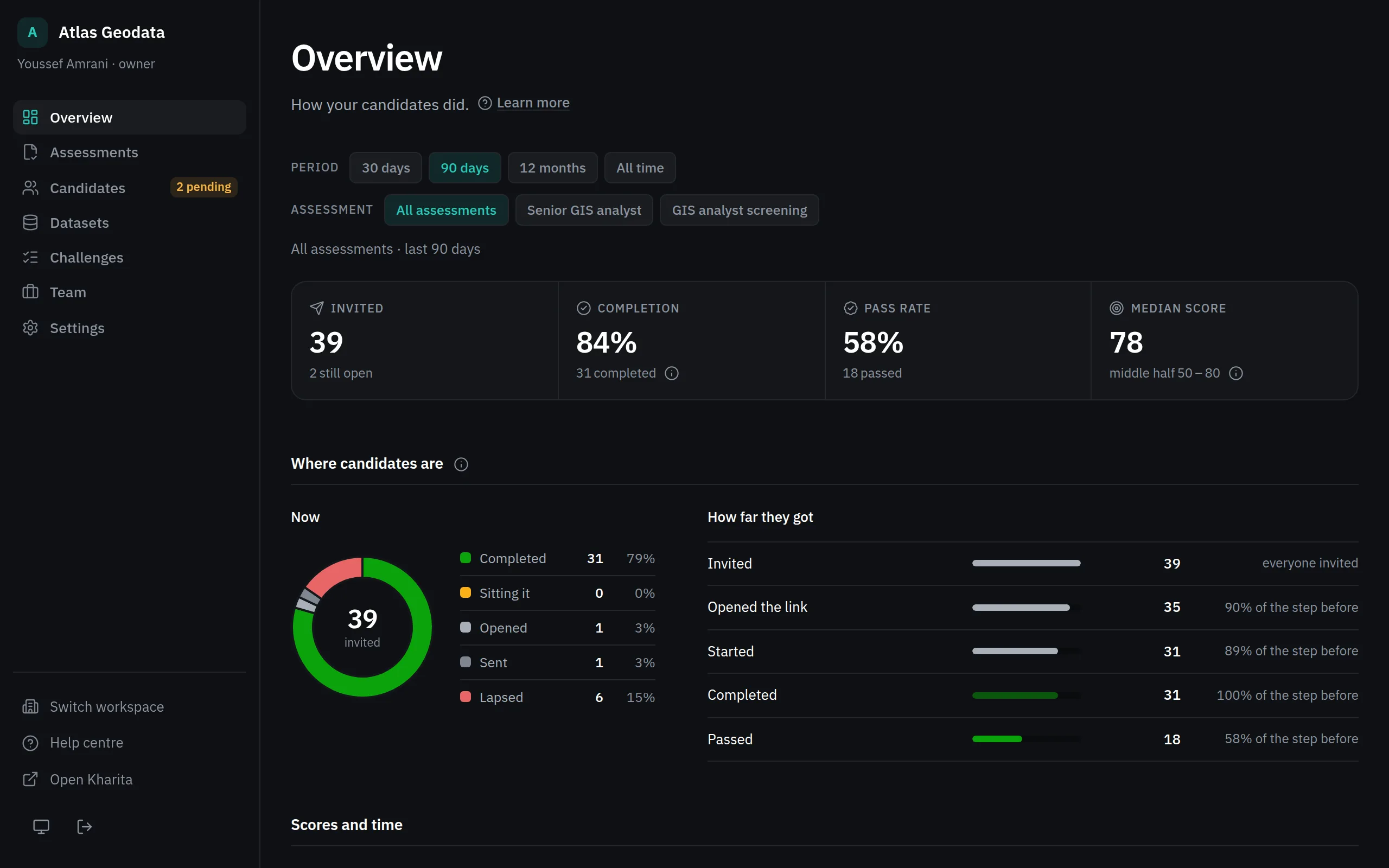
At the foot of the rail are Switch workspace, Help centre and Open Kharita — the practice side of the site — with the theme and sign out.
Your first steps
A new workspace opens on First steps, a checklist ticked by what is in the workspace rather than by clicks. It goes away once an invitation is out.
Step 1: Build an assessment: pick problems, weight sections, set the clock. See Build an assessment.
Step 2: Activate it: an assessment is a draft until you activate it, and only an active one can be sent. See Activate, pause or archive an assessment.
Step 3: Send it to a candidate: create an invitation and send its link yourself. See Invite candidates.
Two more are optional: Use your own data — import a dataset and write a problem on it — and Invite a colleague.
Related
Still stuck? Write to Support