

Invite candidates
Create an invitation for each candidate, send its link yourself, and follow it from sent to completed.
Updated
Team workspaces are opened on request. Ask for one; this is how it works once yours is open.
Create an invitation
Step 1: Open the assessment from Assessments. It must be active.
Step 2: Under Send to a candidate, enter the Candidate email and, if you like, a Name and a Reference — your requisition or role code.
Step 3: Choose how long the link lasts in Expires in (days): from 1 to 60, 14 to start with.
Step 4: Press Create the invitation, then Copy the candidate's link.
Step 5: Send the link yourself, from your own mail.
Follow its progress
Candidates lists everyone you have invited, and filters them by where they are:
- Sent
- The invitation exists; they have not opened the link yet.
- Opened
- They opened the link and have not started.
- Sitting it
- The clock is running.
- Completed
- Handed in and scored; open it for the scorecard.
- Lapsed
- The link expired before they started.
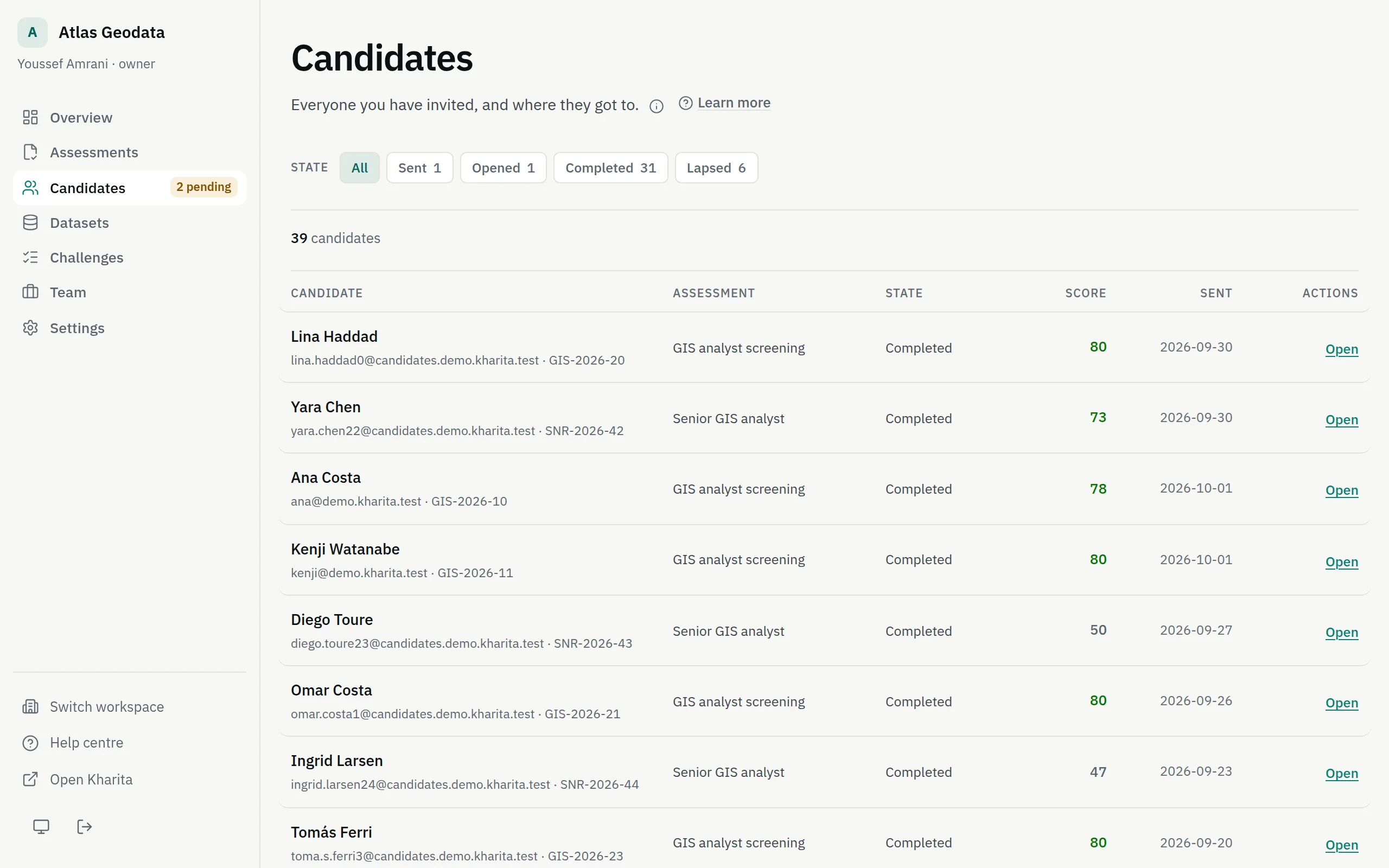
The pending count beside Candidates in the rail is the invitations neither completed nor expired. On the overview, Invitations about to lapse lists those expiring within three days — worth a reminder.
Withdraw, resend or extend
- Withdraw stops the link at once, up to the moment the candidate hands in — withdrawn while they are sitting, it ends their access to the assessment. A completed invitation cannot be withdrawn: that would delete a result.
- There is no resend: copy Their link from the candidate's page and send it again.
- An invitation cannot be extended. Once it has lapsed, create a new one.
One invitation, one sitting
An invitation is for one sitting. One address has one open invitation to an assessment at a time; invite them again once they have completed, or once the link has lapsed.
Related
Still stuck? Write to Support