

Write a problem on your own data
Author a private problem on a dataset you imported, test it against its own answer, and make it available to your assessments.
Updated
Team workspaces are opened on request. Ask for one; this is how it works once yours is open.
Before you start
Import the dataset first — see Import a dataset. Problems on your own data stay in this workspace: they are never listed publicly, and a candidate can open one only while sitting one of your assessments that sets it.
Write it
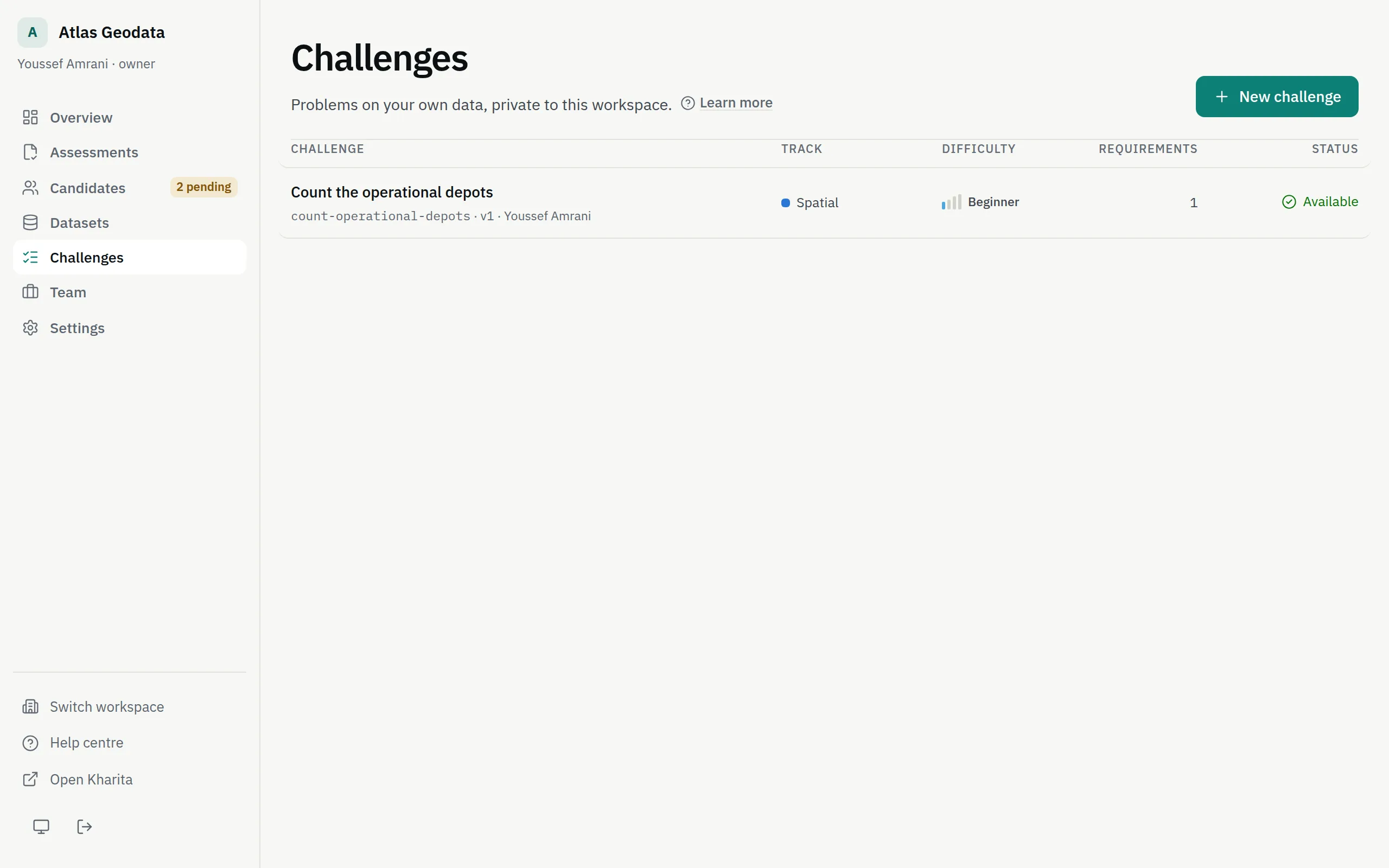
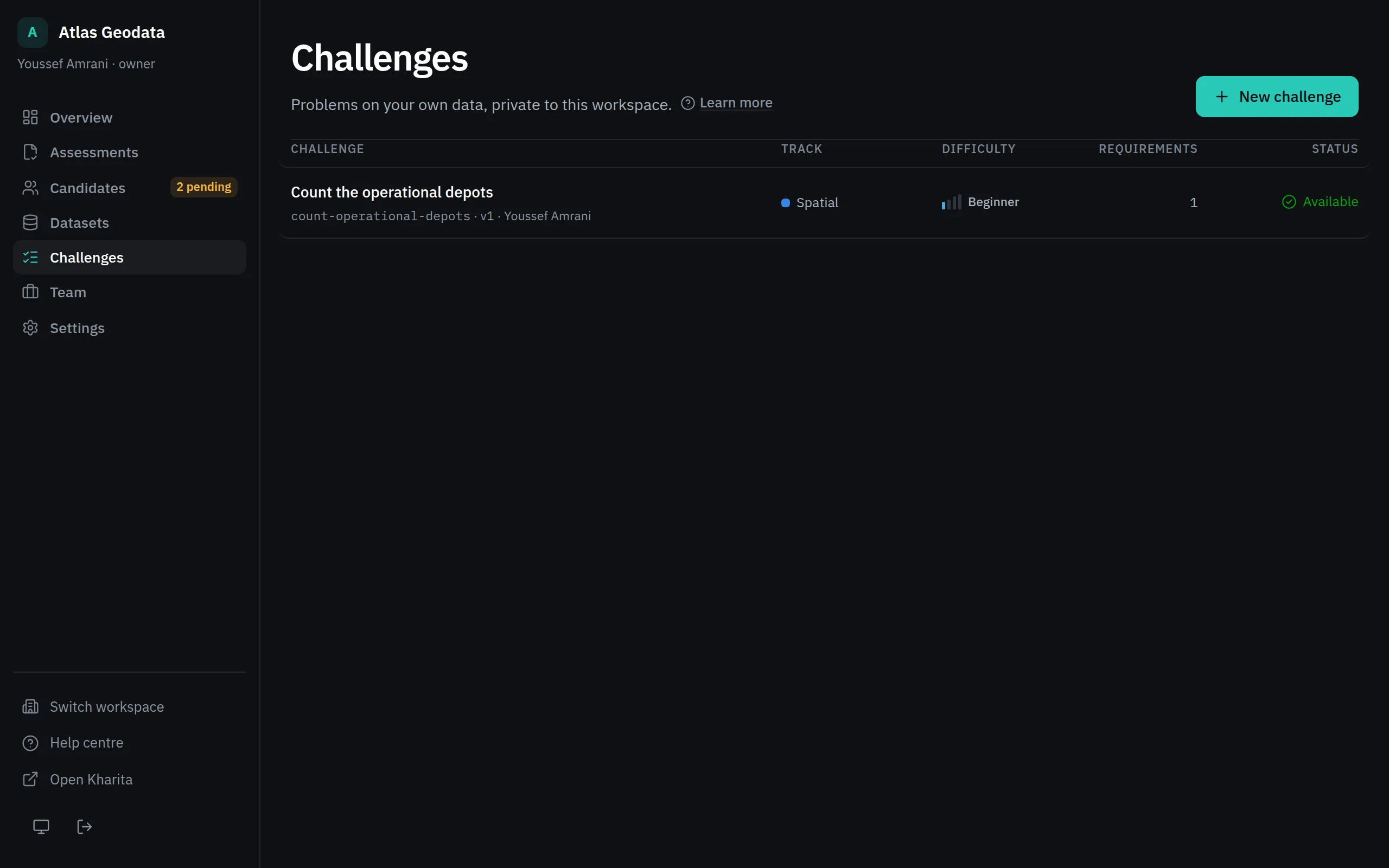
Step 1: Open Challenges and press New challenge. Owners and admins write problems.
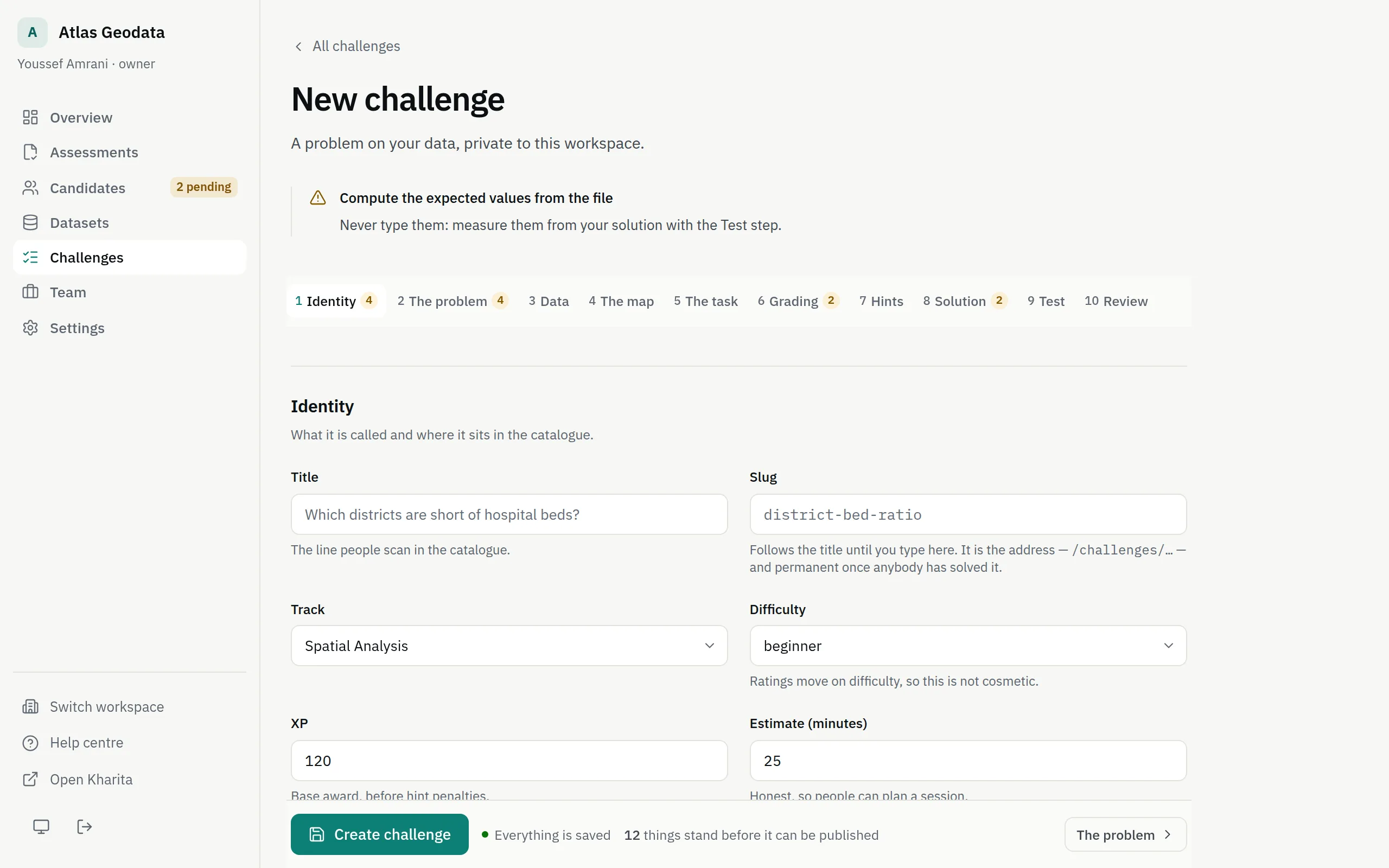
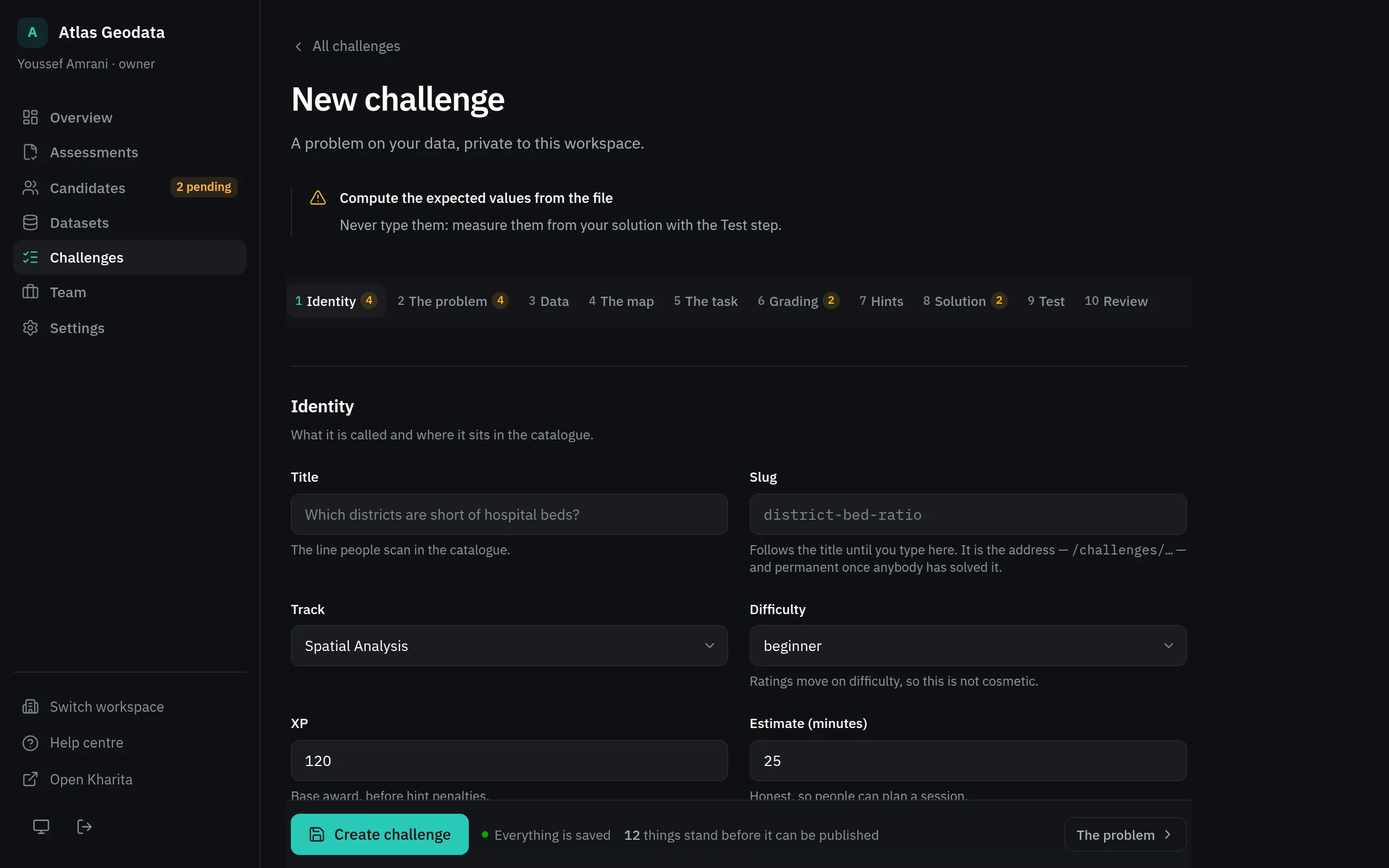
Step 2: Work through the editor's steps: Identity, The problem, Data, The map, The task, Grading, Hints, Solution, Test and Review.
Step 3: Under Data, attach the dataset from your library. Under The task, choose what the candidate hands in.
Step 4: Under Grading, add the requirements that decide whether an answer is right.
Step 5: Press Create challenge. Later changes are saved with Save a new version, and every version is kept under History.
What a candidate can hand in
| Kind | What they hand in |
|---|---|
| GeoJSON result | The features they derived, pasted or uploaded |
| Python script | A script; what it assigns to result is graded |
| Named values | Named answers, typed into a form |
| Prepared dataset (file upload) | A GeoPackage, zipped Shapefile, GeoJSON or CSV they prepared |
| Database schema (DDL) | Statements that build a schema, read back and graded |
| Design decisions | One option for each decision; the decisions themselves are written through the agent bridge |
Test it before anyone is graded
The Test step grades the problem's own solution through the real grader and shows the whole report; nothing is recorded. Its own solution passes every requirement is what you want to read. If it does not, the answer key and the data disagree.
Never type an expected value: press Write these into the requirements to use the values measured from the solution's output. If the editor warns that The prose gives away what is graded, take the figure out of the brief.
Make it available
In the Availability panel, press Make it available. Your assessments can then set it beside problems from the catalogue; it is never offered to anyone outside the workspace. Withdraw from assessments takes it back to draft, and Delete permanently is refused while any assessment uses it.
Related
Still stuck? Write to Support