

Activate, pause or archive an assessment
Only an active assessment can be sent: what each status means, what stops activation, and changing one after sending.
Updated
Team workspaces are opened on request. Ask for one; this is how it works once yours is open.
The three statuses
- Draft
- It can be edited, and nothing can be sent until it is activated.
- Active
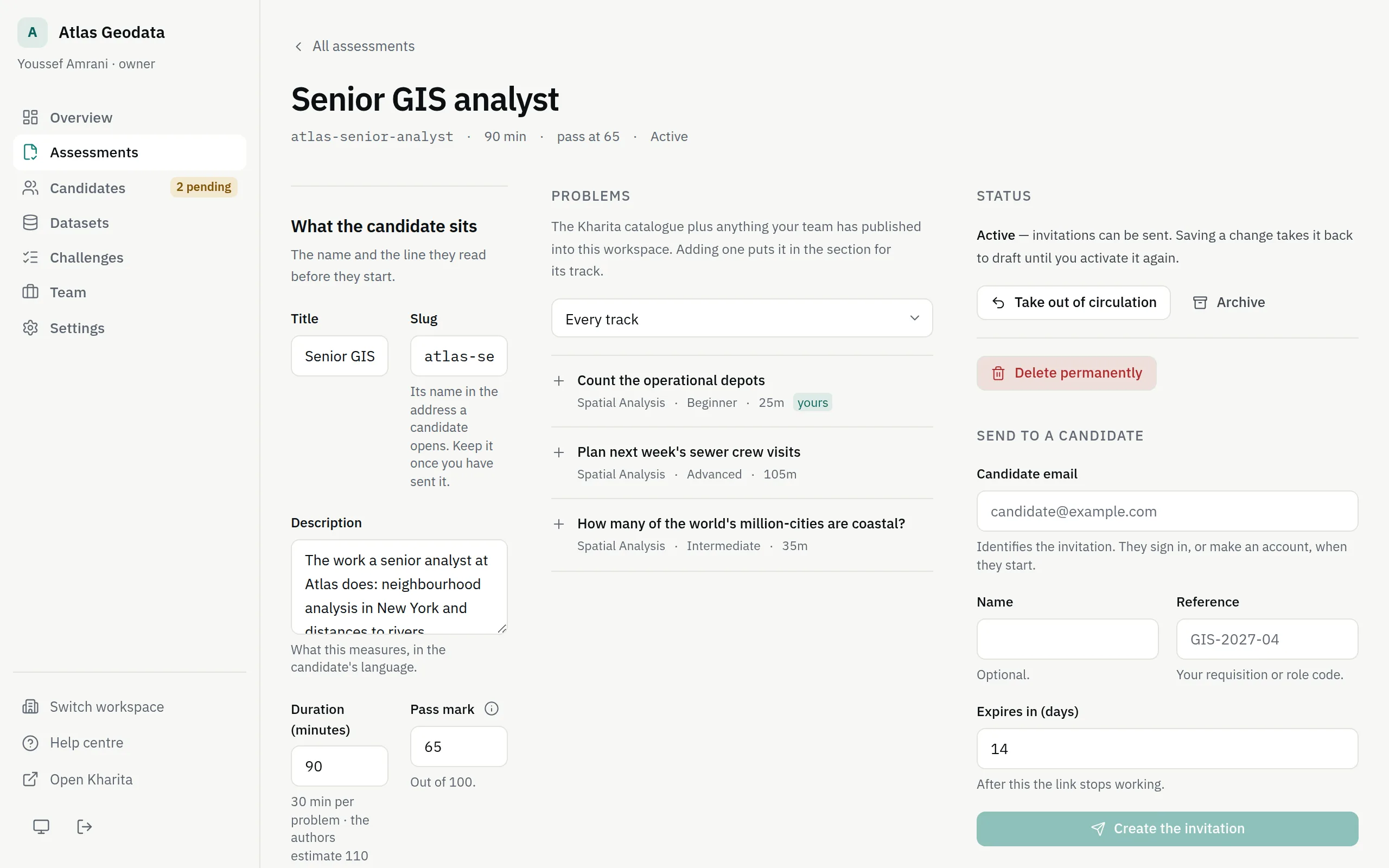
- Invitations can be sent. Saving a change takes it back to draft until you activate it again.
- Archived
- Kept with every result it produced; nothing can be sent.
In the list, a draft with something left to fix shows as Needs work.
Activate it
Step 1: Open the assessment from Assessments.
Step 2: In the Status panel, press Activate. If the button is greyed out, the panel lists what to fix first.
What stops activation
- No sections, or a section with no problems in it — it would score zero for everyone.
- Section weights that add up to zero.
- Fewer than eight minutes a problem.
- A pass mark above 95, which fails almost everyone, including the people you want.
- A problem of yours that is not available yet: make it available in the workspace first.
- A project answered step by step, which a sitting cannot hold.
Change it after sending
You can edit an active assessment, but saving takes it back to draft. Sittings already under way carry on; nobody new can start until you activate it again, and a candidate who opens their link meanwhile reads that the assessment is out of circulation for now and that their invitation still stands.
Take out of circulation does the same on purpose: back to draft, and nothing new can start.
Archive or delete
Archive keeps the assessment with every result it produced and stops it being sent; Unarchive brings it back as a draft. Delete permanently asks you to type its slug and is meant for an assessment nobody has sat — deleting one that has been sat takes its candidates' results with it, so archive it instead.
Related
Still stuck? Write to Support