

Build an assessment
Pick problems, weight the sections, set the clock and the pass mark; it stays a draft until you activate it.
Updated
Team workspaces are opened on request. Ask for one; this is how it works once yours is open.
Start a new assessment
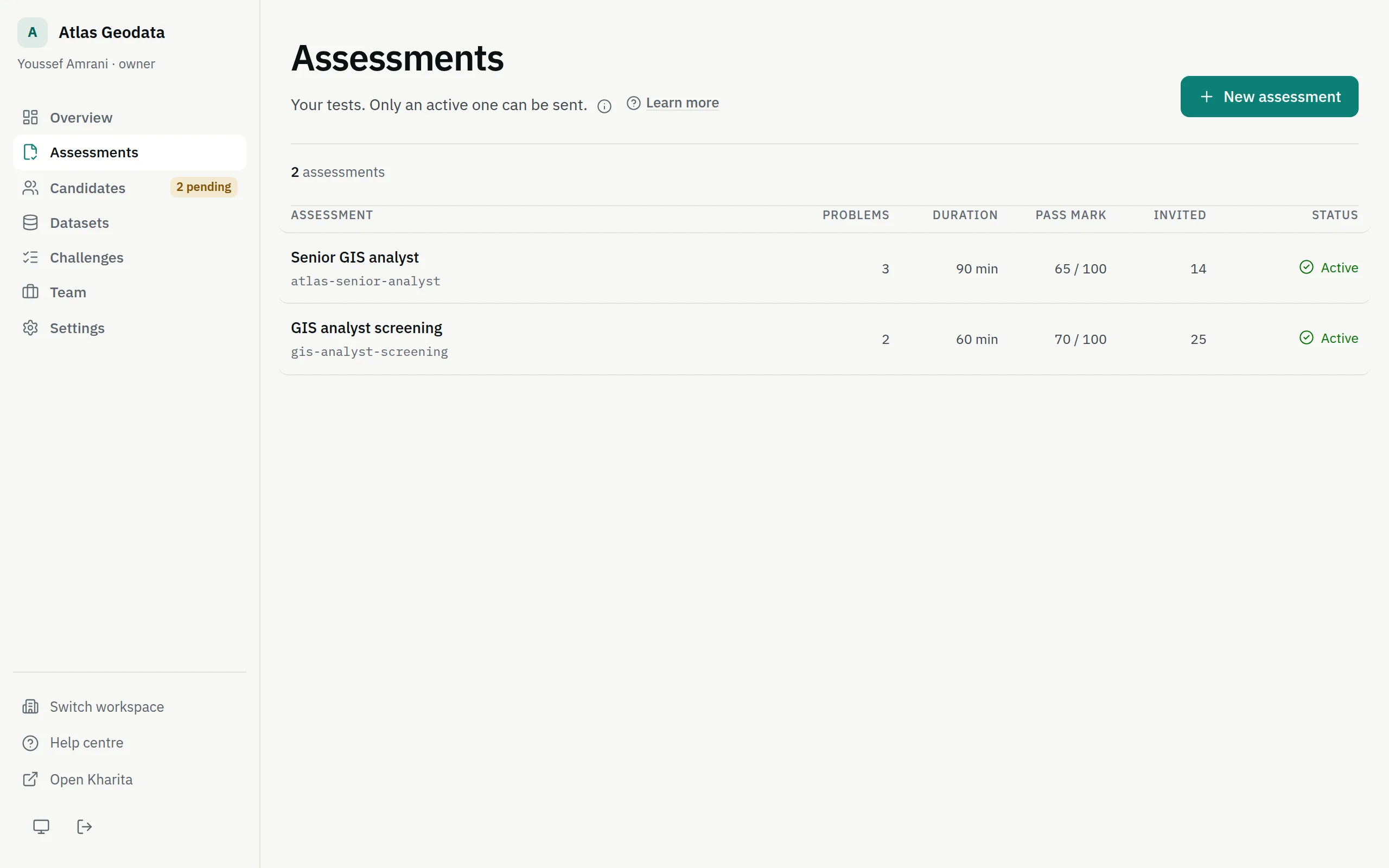
Step 1: Open Assessments and press New assessment. Owners and admins build assessments.
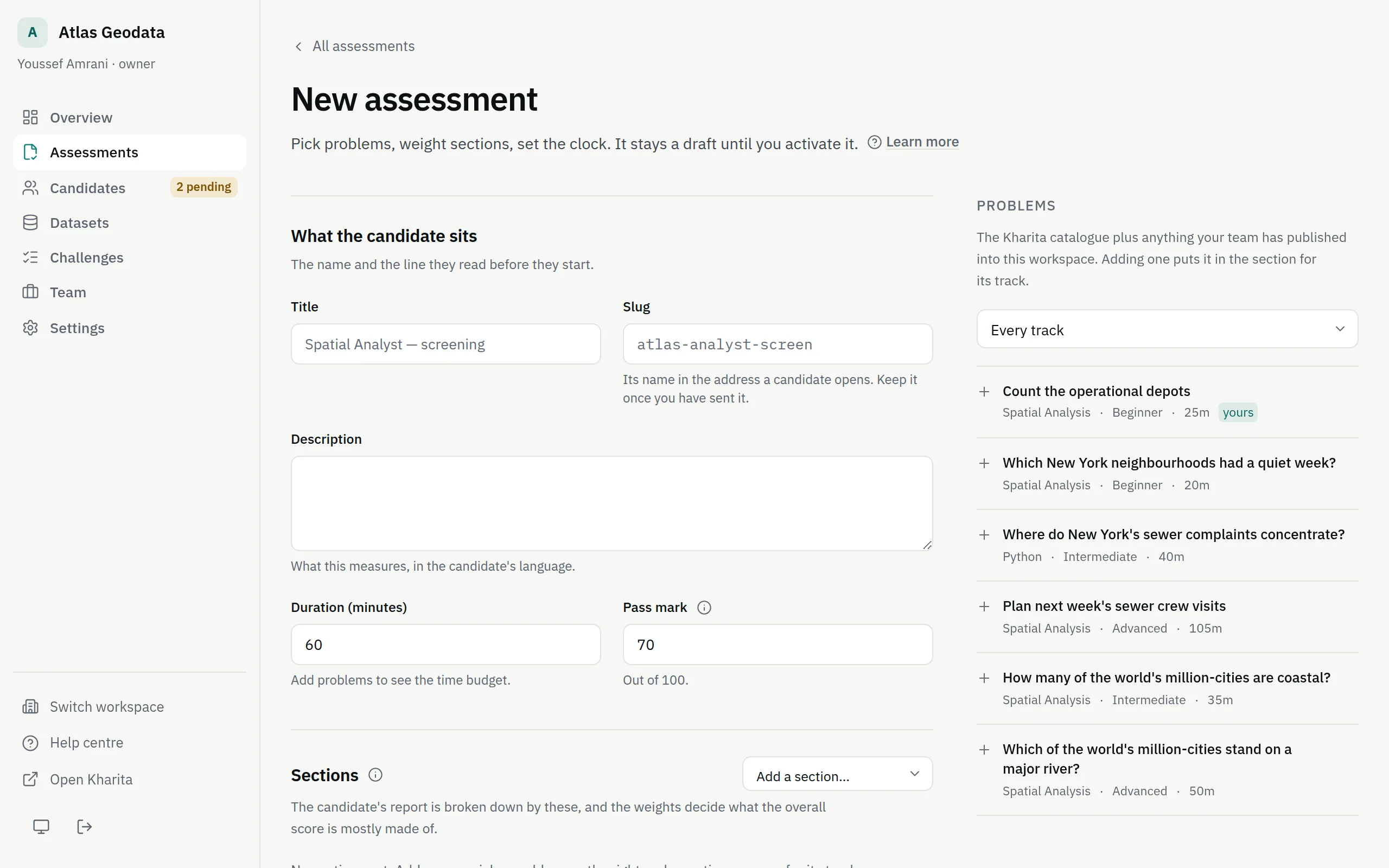
Step 2: Under What the candidate sits, give it a Title a candidate will recognise and a one-line Description of what it measures. The Slug — its name in the address a candidate opens — follows the title until you edit it; keep it once you have sent it.
Step 3: Set the Duration in minutes, from 10 to 480, and the Pass mark out of 100. They start at 60 minutes and 70.
Choose the problems
The Problems list beside the form holds the public Kharita catalogue and every problem your team has made available in this workspace. Filter it by track, or to Yours only. Picking a problem files it into the section for its track, and adds that section if it is not there yet.
Weight the sections
Each section is one skill track. Its Weight, from 1 to 10, decides how much of the overall score it makes up, shown beside it as its Share. A section with no problems scores zero for everyone, so remove the ones you do not need. How the weights become a score is in How scores are worked out.
Get the clock right
- The clock is too tight appears below eight minutes a problem: the result would measure typing speed.
- Longer than the clock appears when the problems' estimated times add up to more than the duration.
Add your rules
Rules are shown to the candidate before they start, after the platform's own rule, and they agree to them by starting. Three are filled in for you: the clock does not pause, hints and solutions are locked, and every dataset they need is provided. Add your own with Add a rule.
Save it
Press Create assessment, or Save changes later. Saving sends nothing: the assessment is a draft until you activate it — see Activate, pause or archive an assessment.
Related
Still stuck? Write to Support